Notifi℠
How It Works
Getting Started
- 1
Log in to your app using your User ID and password
- 2
Tap ‘More’ to enable Notifi
- 3
Under settings, tap ‘Alerts’.
- 4
Turn on push notifications
- 5
Tap ‘Allow’ to continue.
- 6
You can now customize alerts, view alert history, manage delivery preferences, and more.
Enable Account Alerts
- 1
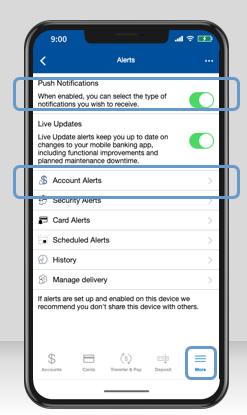
Under the ‘More’ menu, tap ‘Alerts’.
- 2
Enable push notifications, then tap ‘Account Alerts’
- 3
Choose the account for which you want to receive alerts.
- 4
To add an alert, tap ‘Add New Alert’.
- 5
Tap on the alert(s) you want to receive and set any necessary parameters. These settings will save automatically once set.
Manage Notification Delivery Preferences
- 1
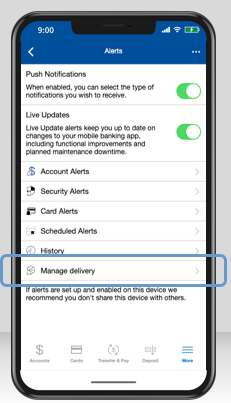
After enabling push notifications, tap ‘Manage Delivery’
- 2
Tap ‘Add New Phone Number’ to start receiving alerts to a mobile phone. Tap ‘Continue’.
- 3
A verification code will be sent to the number you entered. Enter the code, then tap ‘Verify’.
- 4
A message will appear to show the number was successfully added. Tap ‘OK’ to continue setting up your notification preferences.
Enable Security Alerts
- 1
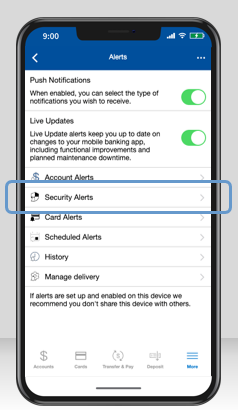
After enabling push notifications, tap ‘Security Alerts’
- 2
Toggle on the security alerts you want to receive.
- 3
The green toggle indicates that the security alert is enabled.