


Check Positive Pay
How It Works
Accessing Check Positive Pay
Follow these steps if you are an authorized user for Check Positive Pay.
- 1
Log in to business online banking
- 2
On the main page, select ‘Positive Pay HQ’
- 3
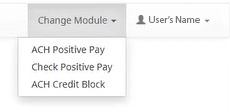
In the menu bar, select ‘Change Module’ and ‘Check Positive Pay’
Upload an Issued Check File
- 1
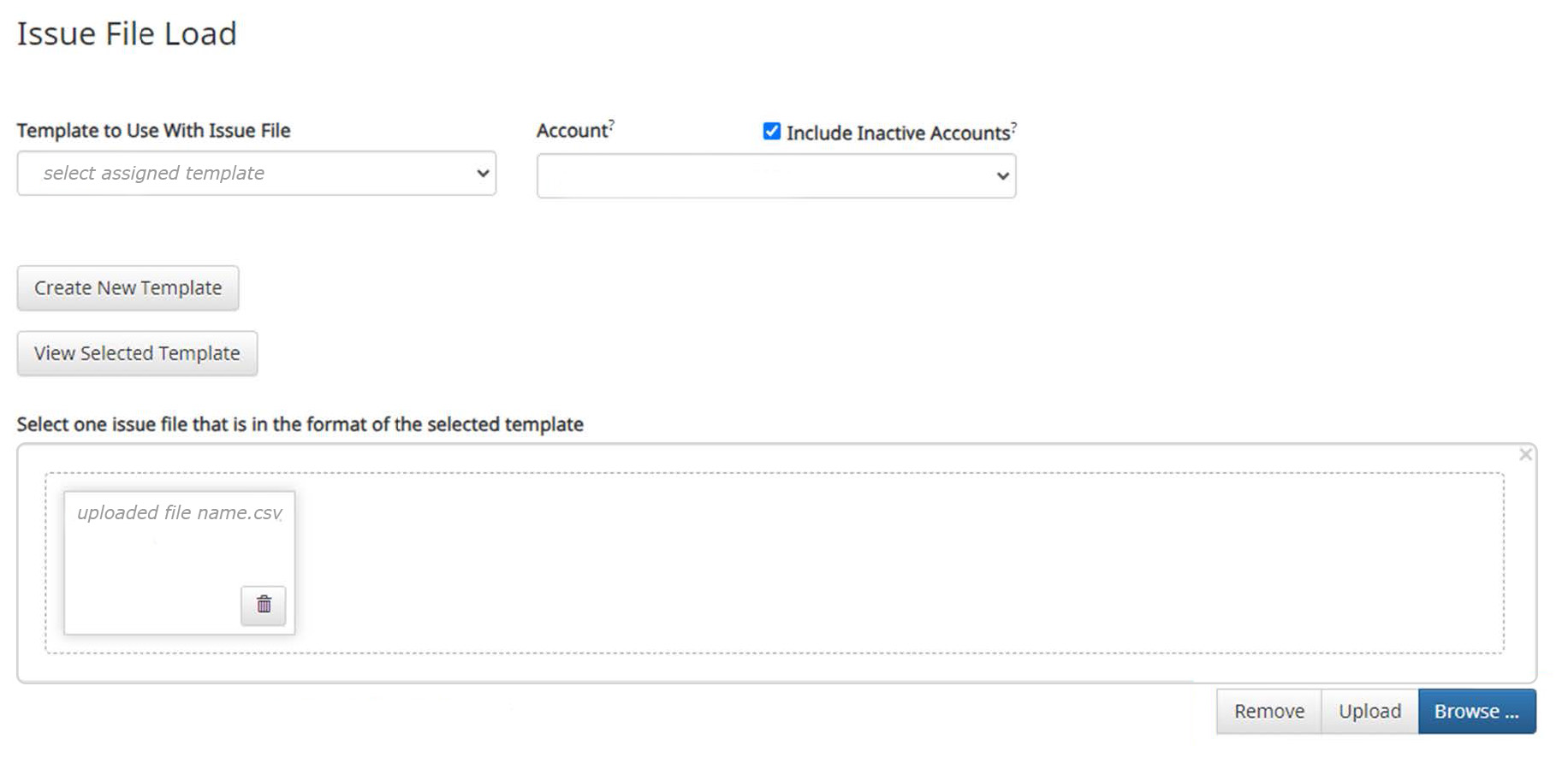
Select ‘Perform’ in the menu bar, and then ‘Issue File Load’
- 2Select your assigned template in the ‘Template to Use With Issue File’ drop-down
- 3
Upload a saved file from your computer; it must be in .csv comma delimited format
- 4
Click ‘Upload’ to submit the file
- 5
If the file is uploaded successfully, a green banner will appear. If errors exist, a message will appear listing them.
Manual Check Entry
- 1
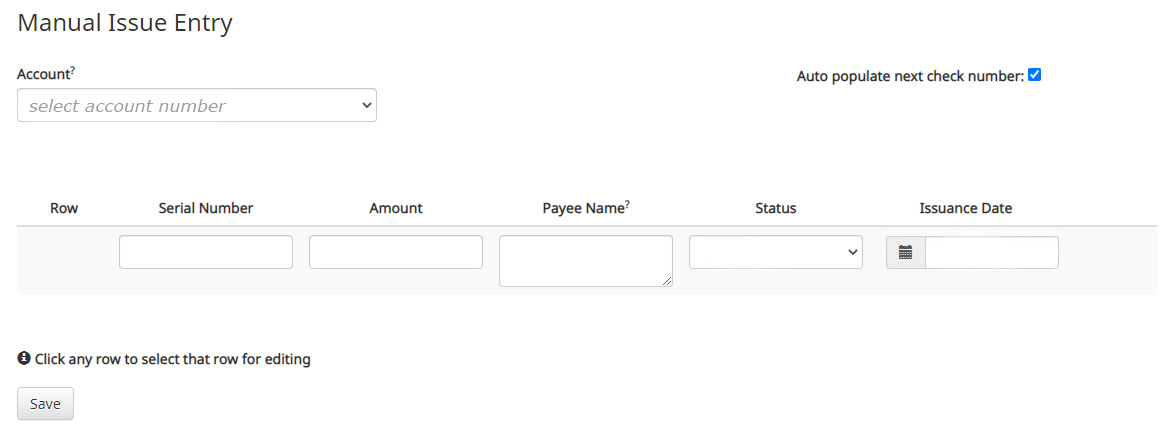
Select the ‘Perform’ in the menu bar, and then ‘Manual Issue Entry’
- 2
Select the account number for the check
- 3
Enter the required check information (i.e., check number, amount, payee, status, issued date)
- 4
Review the entered information to ensure accuracy
- 5
Select ‘Save’
Exception Review
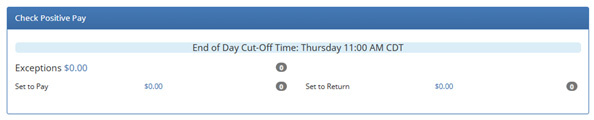
If checks are presented for payment and do not match issue files or manually entered items, Check Positive Pay users will be notified via email at 7:00 AM CST and again at 9:00 AM CST if items are not reviewed. Users must log in to Positive Pay HQ by 11:00 AM CST to review exception items. If items are not reviewed by the cut-off time, they will be either paid or returned, depending on the Client’s default selection. Follow the steps below to review exception items:
- 1
On the main screen of Positive Pay HQ, in the Check Positive Pay box, click on the Exceptions dollar amount. If the amount is $0.00, there are no exceptions to review.
- 2
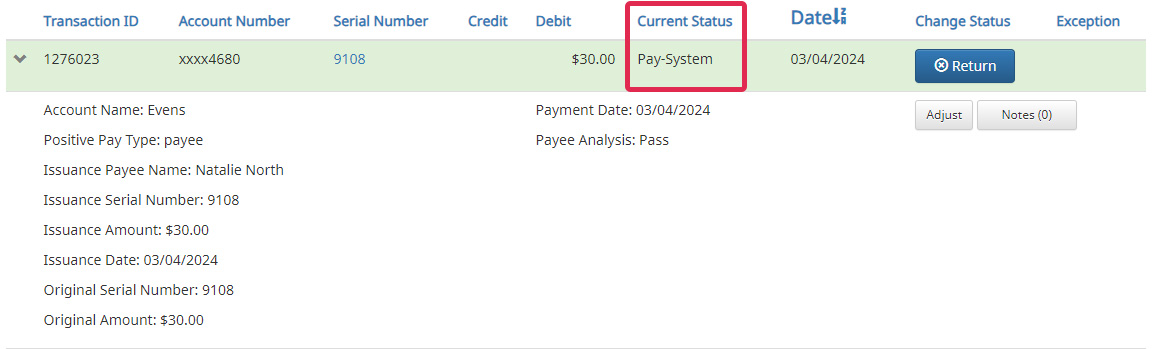
In the Transactions History screen, review the exception items listed by clicking on the arrow to the left of the item to show additional details.
- 3
The current status of the exception item is shown in the Current Status column. To change the decision of the item, click the blue button in the Change Status column. Only click the blue button if you want to change the Current Status.
- 4
If you change the status, the Current Status column will change to either Return-User or Pay-User to indicate that a user changed the status.
- 5
Review all exception items listed and determine whether they should be paid or returned. Decisions must be completed by 11:00 AM CST.
If item(s) are being returned due to fraud, contact our team. We will work with you to open a new account to mitigate additional fraud and further protect your account.
Best Practice Tips
Daily Processes
- Consider setting reminders before the 11:00 AM CST cut-off time
- Missing the cut-off time will result in default processing by the Bank
- Determine backup processes to ensure daily coverage
Accuracy Matters
- Double-check all entries (manual or uploaded) for correct check number, amounts, payees, and dates
- Always save issued check files in CSV format before uploading
- Confirm file uploads by reviewing the system status after submission
Fraud Prevention
- Review exceptions carefully – this is your chance to stop unauthorized or altered items
- We recommend reviewing all images
- Use the Pay and Return decisions strategically to protect your accounts
- Notify us if you return items due to fraud